How to Use Trust Wallet: Multi-Chain Beginner Guide (2026)
— By Tony Rabbit in Tutorials
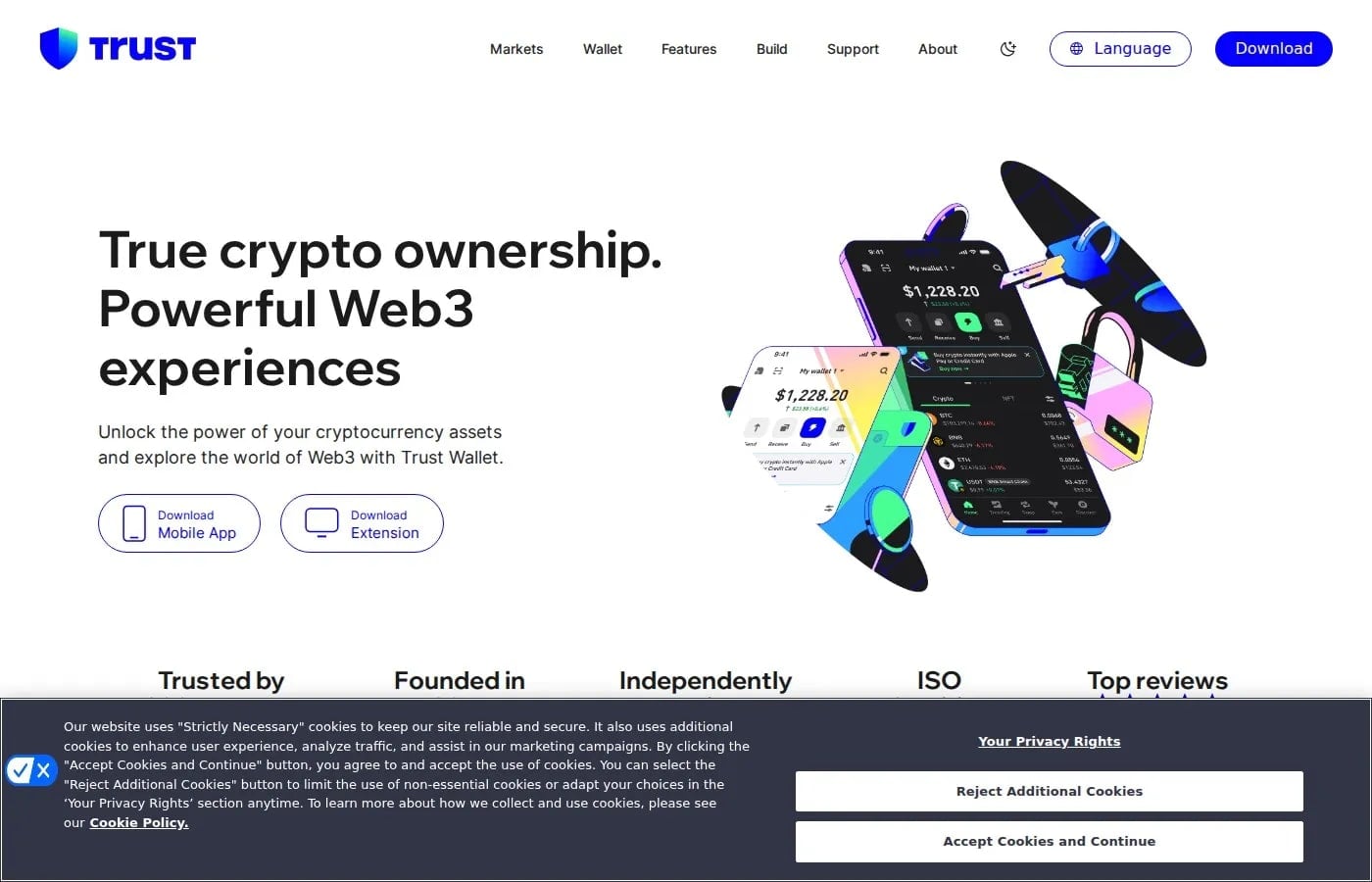
Learn how to use Trust Wallet in 2026 as a multi-chain beginner wallet, with setup, token management, swaps, staking, dApps, and security basics.
What Is Trust Wallet and Why Use It?
Trust Wallet is a free, non-custodial cryptocurrency wallet owned by Binance. It supports over 10 million tokens across 100+ blockchains, including Ethereum, BNB Chain, Solana, Polygon, Avalanche, and many more. With over 60 million users worldwide, it is one of the most downloaded crypto wallets on mobile.
Unlike exchange wallets where a company holds your keys, Trust Wallet gives you full control of your private keys. That means only you can access your funds. No middleman, no permission needed.
Key features of Trust Wallet:
- Multi-chain support (Ethereum, BNB Chain, Solana, Polygon, Avalanche, Arbitrum, and 100+ more)
- Built-in dApp browser for connecting to DeFi protocols
- Token swaps directly inside the wallet
- Staking for earning passive income on supported tokens
- NFT gallery for viewing and managing your NFT collection
- Browser extension available for desktop
Where this page fits This is the Trust Wallet-specific workflow for a broad multi-chain beginner wallet. If you still need the generic wallet setup first, read How to Create a Crypto Wallet. If you want a wallet tied more closely to the Coinbase ecosystem, use Coinbase Wallet.
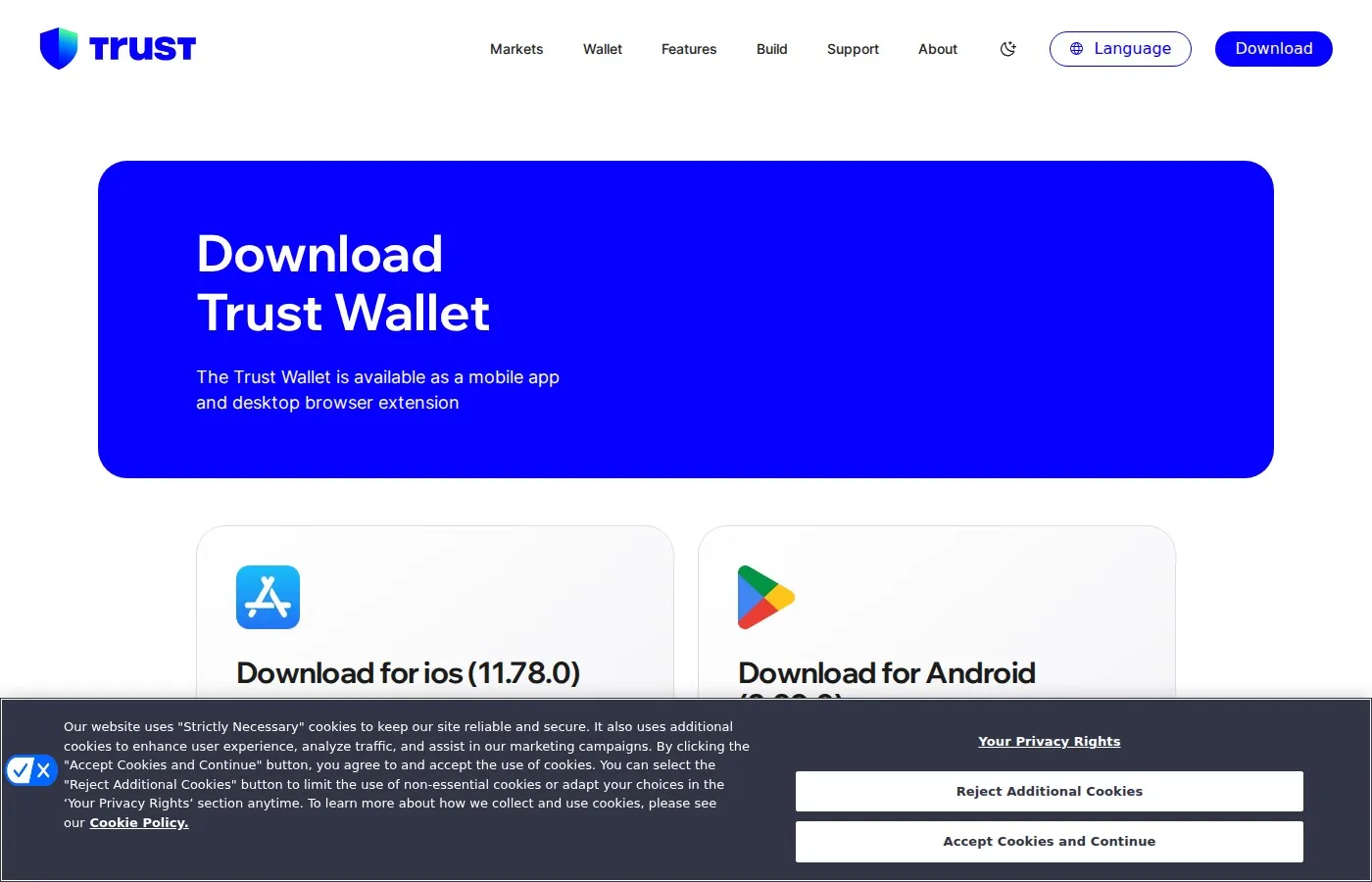
Step 1: Download and Install Trust Wallet
Trust Wallet is available on iOS, Android, and as a browser extension for Chrome:
- Go to trustwallet.com (always verify the official URL)
- Click Download and choose your platform
- For mobile: Download from the App Store (iOS) or Google Play (Android)
- For desktop: Install the Trust Wallet browser extension from the Chrome Web Store
Warning: Only download Trust Wallet from official sources. Fake wallet apps are a common crypto scam. Always check that the developer is "Trust Wallet" with millions of downloads.
Step 2: Create Your Wallet
After installing Trust Wallet, follow these steps to set up your wallet:
- Open Trust Wallet and tap Create a New Wallet
- Accept the Terms of Service
- Set a passcode (and enable biometric authentication if available)
- Trust Wallet will show your 12-word Secret Recovery Phrase
- Write down all 12 words on paper in the exact order shown
- Confirm your recovery phrase by tapping the words in the correct order
Write your 12-word recovery phrase on paper. Never store it digitally or share it with anyone.
Protecting Your Recovery Phrase
- Never take a screenshot of your recovery phrase
- Never store it in a notes app, cloud storage, or email
- Never share it with anyone, including Trust Wallet support
- Write it on paper and store in a secure, fireproof location
- Consider making two copies and storing them in different places
Step 3: Fund Your Trust Wallet
There are three main ways to add crypto to your Trust Wallet:
Option A: Buy Crypto Directly
- Tap the Buy button on the main screen
- Select the crypto you want to buy (BNB, ETH, BTC, SOL, etc.)
- Choose a payment provider (MoonPay, Simplex, Mercuryo, Transak)
- Enter the amount and complete the purchase with your card or bank transfer
Option B: Transfer from an Exchange
- Tap the crypto you want to receive (e.g., BNB)
- Tap Receive to see your wallet address and QR code
- Copy the address and go to your exchange (Binance, Coinbase, Kraken)
- Withdraw to your Trust Wallet address on the correct network
- Always send a small test amount first
Option C: Receive from Another Wallet
- Share your wallet address or QR code with the sender
- Make sure you both agree on the correct blockchain network
Step 4: Swap Tokens Inside Trust Wallet
Trust Wallet has a built-in DEX aggregator that finds the best swap rates across multiple decentralized exchanges:
- Tap the Swap icon at the bottom of the screen
- Select the token you want to swap from (e.g., BNB)
- Select the token you want to swap to (e.g., USDT)
- Enter the amount
- Review the exchange rate and estimated fees
- Tap Swap and confirm the transaction
Swap tips:
- Always keep enough native tokens for gas fees (BNB on BNB Chain, ETH on Ethereum, SOL on Solana)
- Check token prices on DEXTools before swapping to compare rates
- Adjust slippage tolerance for low-liquidity tokens (tap the gear icon)
- Swaps on BNB Chain and Solana are typically the cheapest
Step 5: Use the dApp Browser to Access DeFi
The built-in dApp browser is one of Trust Wallet's best features. It lets you connect directly to DeFi protocols, NFT marketplaces, and other decentralized applications.
The Trust Wallet dApp browser gives you direct access to DeFi protocols across multiple chains.
- Tap the Browser tab (or Discover on newer versions)
- Browse popular dApps by category (DeFi, NFTs, Games)
- Or enter a URL directly (e.g., pancakeswap.finance)
- The dApp will automatically detect Trust Wallet and ask to connect
- Tap Connect and approve the connection
Popular dApps to try:
- Uniswap (Ethereum/L2 swaps)
- Raydium (Solana swaps)
- PancakeSwap (BNB Chain swaps)
- Aave (lending and borrowing)
- OpenSea (NFT marketplace)
Step 6: Stake Crypto for Passive Income
Trust Wallet supports native staking for several cryptocurrencies, letting you earn rewards without leaving the wallet:
- Go to the Earn tab
- Select the token you want to stake (BNB, SOL, ATOM, TRX, and others)
- Choose a validator (look for low commission and high uptime)
- Enter the amount to stake
- Confirm and start earning rewards
Staking rewards vary by token:
- BNB: ~2-4% APY
- Solana (SOL): ~6-8% APY
- Cosmos (ATOM): ~15-20% APY
- Tron (TRX): ~4-5% APY
Note that staked tokens are locked for a period (varies by network). Research unstaking periods before committing large amounts.
Step 7: Manage Multiple Wallets and Networks
Trust Wallet makes it easy to organize your crypto across different wallets and chains:
Adding a New Wallet
- Go to Settings and tap Wallets
- Tap the + icon
- Choose Create a New Wallet or Import a Wallet
- If importing, enter your 12 or 24-word recovery phrase from another wallet
Managing Tokens
- Tap the toggle icon in the top right of the main screen
- Search for the token you want to add
- Toggle it on to show it in your wallet
- For custom tokens: tap Add Custom Token, select the network, and paste the contract address
Trust Wallet Security Best Practices
- Enable biometric lock: Use Face ID or fingerprint authentication for every transaction
- Enable transaction signing: Require confirmation for every outgoing transaction
- Review connected dApps: Regularly disconnect from dApps you no longer use
- Revoke token approvals: Use Revoke.cash to check and remove old approvals
- Keep the app updated: Updates include critical security patches
- Verify addresses: Always double-check recipient addresses before sending
- Use multiple wallets: Keep a small "daily use" wallet and a separate "savings" wallet
Using Trust Wallet with DEXTools
For the best trading experience, combine Trust Wallet with DEXTools:
- Research tokens on DEXTools Pair Explorer
- Check the chart, liquidity, holder distribution, and token audit score
- When you find a token to buy, copy its contract address from DEXTools
- Open Trust Wallet, go to Swap, paste the address, and execute the trade
This workflow gives you professional-grade research tools combined with Trust Wallet's easy mobile execution.
Troubleshooting Common Trust Wallet Issues
Token Not Showing After Purchase
- Tap the toggle icon and search for the token
- If not found, add it manually using the contract address
- Make sure you are on the correct network (a BEP-20 token only shows on BNB Chain)
Transaction Failed
- Check if you have enough native tokens for gas (BNB, ETH, SOL)
- Increase slippage tolerance for volatile tokens
- Try again with a smaller amount
dApp Not Connecting
- Make sure you are on the correct network for that dApp
- Clear the browser cache in Trust Wallet settings
- Try disconnecting and reconnecting
Trust Wallet Mobile vs Browser Extension
- Mobile app: Best for on-the-go trading, staking, and dApp browsing. Has the built-in dApp browser.
- Browser extension: Best for desktop DeFi usage. Works similarly to MetaMask and connects to dApps on your computer.
- Both share the same wallet if you import the same recovery phrase.
Disclaimer: This article is for educational purposes only and does not constitute financial advice. Always do your own research (DYOR) before interacting with any cryptocurrency protocol. Never invest more than you can afford to lose.
Related Guides
- How to Use Rabby Wallet: Complete Multi-Chain EVM Wallet Tutorial (2026)
- OKX Web3 Wallet Tutorial 2026: Multi-Chain Setup Guide
- How to Use Exodus Wallet: Portfolio and Multi-Chain Guide (2026)
- Zapper Tutorial: Navigate DeFi Dashboards and Manage Multi-Chain Portfolios (2026)
- What Is KyberSwap (KNC)? Multi-Chain DEX Aggregator Guide 2026
- Trust Wallet Beginner Guide
Keep exploring
Frequently Asked Questions
Is Trust Wallet safe to use?
Yes. Trust Wallet is non-custodial, open-source, and owned by Binance. Your private keys are stored locally on your device. Security depends on how well you protect your 12-word recovery phrase.
Does Trust Wallet support Bitcoin?
Yes. Trust Wallet supports Bitcoin natively along with 100+ other blockchains including Ethereum, Solana, BNB Chain, and Polygon.
What happens if I lose my phone with Trust Wallet?
If you have your 12-word recovery phrase, you can restore your wallet on any new device. Without it, your funds are permanently lost.