How to Use MetaMask Wallet: Complete Beginner Tutorial 2026
— By Tony Rabbit in Tutorials
Learn how to install, set up, and use MetaMask wallet step by step. This complete 2026 guide covers sending crypto, swapping tokens, adding networks, and security best practices.
MetaMask is the most popular crypto wallet in the world, with over 100 million users. Whether you want to trade on decentralized exchanges, collect NFTs, or interact with DeFi protocols, you need MetaMask. This complete tutorial walks you through everything from installation to advanced features.
What Is MetaMask?
MetaMask is a non-custodial cryptocurrency wallet that works as a browser extension (Chrome, Firefox, Brave, Edge) and mobile app (iOS and Android). It lets you store, send, receive, and swap Ethereum and ERC-20 tokens, plus connect to thousands of decentralized applications (dApps).
Key features:
- Store ETH and all ERC-20 tokens in one place
- Connect to DeFi protocols like Uniswap, Aave, and Curve
- Swap tokens directly inside the wallet
- Support for multiple blockchains (Ethereum, Polygon, Arbitrum, Optimism, BNB Chain, Avalanche)
- Hardware wallet integration (Ledger, Trezor)
- Open source and free to use
Step 1: Install MetaMask
Getting started with MetaMask takes less than 5 minutes:
- Go to metamask.io (always verify the URL - never download MetaMask from third-party sites)
- Click Download and select your browser or mobile platform
- For Chrome: Click Add to Chrome in the Chrome Web Store
- The MetaMask fox icon will appear in your browser toolbar
Important: Only install MetaMask from the official website (metamask.io) or official app stores. Fake MetaMask extensions are one of the most common crypto scams.

The MetaMask dashboard shows your balance, tokens, and recent activity at a glance.
Step 2: Create Your Wallet
After installation, MetaMask will guide you through wallet creation:
- Click Create a New Wallet
- Set a strong password (this encrypts your wallet locally)
- MetaMask will display your Secret Recovery Phrase - 12 random words
- Write these words down on paper and store them safely
- Confirm your recovery phrase by selecting the words in order
Protecting Your Secret Recovery Phrase
Your recovery phrase is the master key to your wallet. Anyone who has it controls your funds. Follow these rules:
- Never share your recovery phrase with anyone - MetaMask support will never ask for it
- Never store it digitally (no screenshots, no cloud storage, no notes app)
- Write it on paper and store in a secure location (ideally two copies in different places)
- Consider a metal backup plate for fire and water resistance
- Never enter your recovery phrase on any website

MetaMask lets you reveal your Secret Recovery Phrase anytime - keep it safe and never share it.
Step 3: Fund Your Wallet
To start using MetaMask, you need to add cryptocurrency:
Option A: Buy Directly in MetaMask
- Click Buy in the MetaMask dashboard
- Select a payment provider (Transak, MoonPay, Coinbase Pay)
- Choose your amount and payment method (card, bank transfer)
- Complete the purchase - ETH appears in your wallet within minutes
Option B: Transfer from an Exchange
- Copy your MetaMask wallet address (click the address at the top)
- Go to your exchange (Binance, Coinbase, Kraken)
- Withdraw ETH to your MetaMask address
- Always send a small test transaction first
Option C: Receive from Another Wallet
- Share your wallet address with the sender
- Or use the QR code (mobile app)

Always review the transaction details and gas fee before confirming a send in MetaMask.
Step 4: Add Networks (Polygon, Arbitrum, and More)
MetaMask defaults to Ethereum Mainnet, but you can add other blockchains for lower fees and access to more dApps:

MetaMask supports dozens of EVM-compatible networks. Add them from the network selector.
Adding a Network Automatically
- Click the network selector at the top (says "Ethereum Mainnet")
- Click Add Network
- Popular networks like Polygon, Arbitrum, and Optimism appear as one-click options
- Click Approve to add the network
Adding a Network Manually
For networks not in the default list:
- Click Add Network then Add a network manually
- Enter the network details (name, RPC URL, Chain ID, currency symbol, block explorer)
- Click Save
You can find network details on Chainlist.org - a trusted directory of EVM network configurations.
Popular Networks to Add
NetworkChain IDGas TokenAvg. FeePolygon137MATIC$0.01Arbitrum One42161ETH$0.10Optimism10ETH$0.05BNB Chain56BNB$0.05Avalanche C-Chain43114AVAX$0.03Base8453ETH$0.01
Step 5: Send and Receive Crypto
Sending Tokens
- Click Send on the MetaMask dashboard
- Enter the recipient address (or select from your contacts)
- Enter the amount
- Review the gas fee estimate
- Click Confirm
Pro tips for sending:
- Always double-check the recipient address - crypto transactions are irreversible
- Make sure you are on the correct network (sending ETH on Polygon is different from Ethereum)
- Keep enough native token (ETH, MATIC) for gas fees
- Use "Aggressive" gas for time-sensitive transactions
Receiving Tokens
- Click your wallet address at the top to copy it
- Share this address with the sender
- Make sure the sender uses the same network you are on
Step 6: Swap Tokens Inside MetaMask
MetaMask has a built-in swap feature that aggregates prices from multiple DEXs to find the best rate:

The MetaMask swap feature finds the best exchange rate across multiple DEXs automatically.
- Click the Swap tab in MetaMask
- Select the token you want to swap from (e.g., ETH)
- Select the token you want to swap to (e.g., USDC)
- Enter the amount
- Review the quote (exchange rate, gas fee, MetaMask fee)
- Click Swap to execute
Swap tips:
- MetaMask charges a 0.875% service fee on swaps
- For large swaps, compare prices on DEXTools first
- Consider using DEX aggregators like 1inch or Paraswap for potentially better rates
- Set slippage tolerance (default 2% is fine for most tokens)
Step 7: Connect to DeFi dApps
MetaMask's real power is connecting to decentralized applications:
- Visit a dApp (e.g., Uniswap, Aave, OpenSea)
- Click Connect Wallet on the dApp
- Select MetaMask from the wallet options
- MetaMask will pop up asking you to approve the connection
- Click Connect
You can manage your connected sites in MetaMask Settings. Regularly disconnect from dApps you no longer use.
Step 8: Security Best Practices
Your crypto is only as safe as your wallet security. Follow these essential practices:
Following these security practices will protect your funds from common threats.
Essential Security Checklist
- Enable browser lock: Settings - Security & Privacy - Auto-lock timer
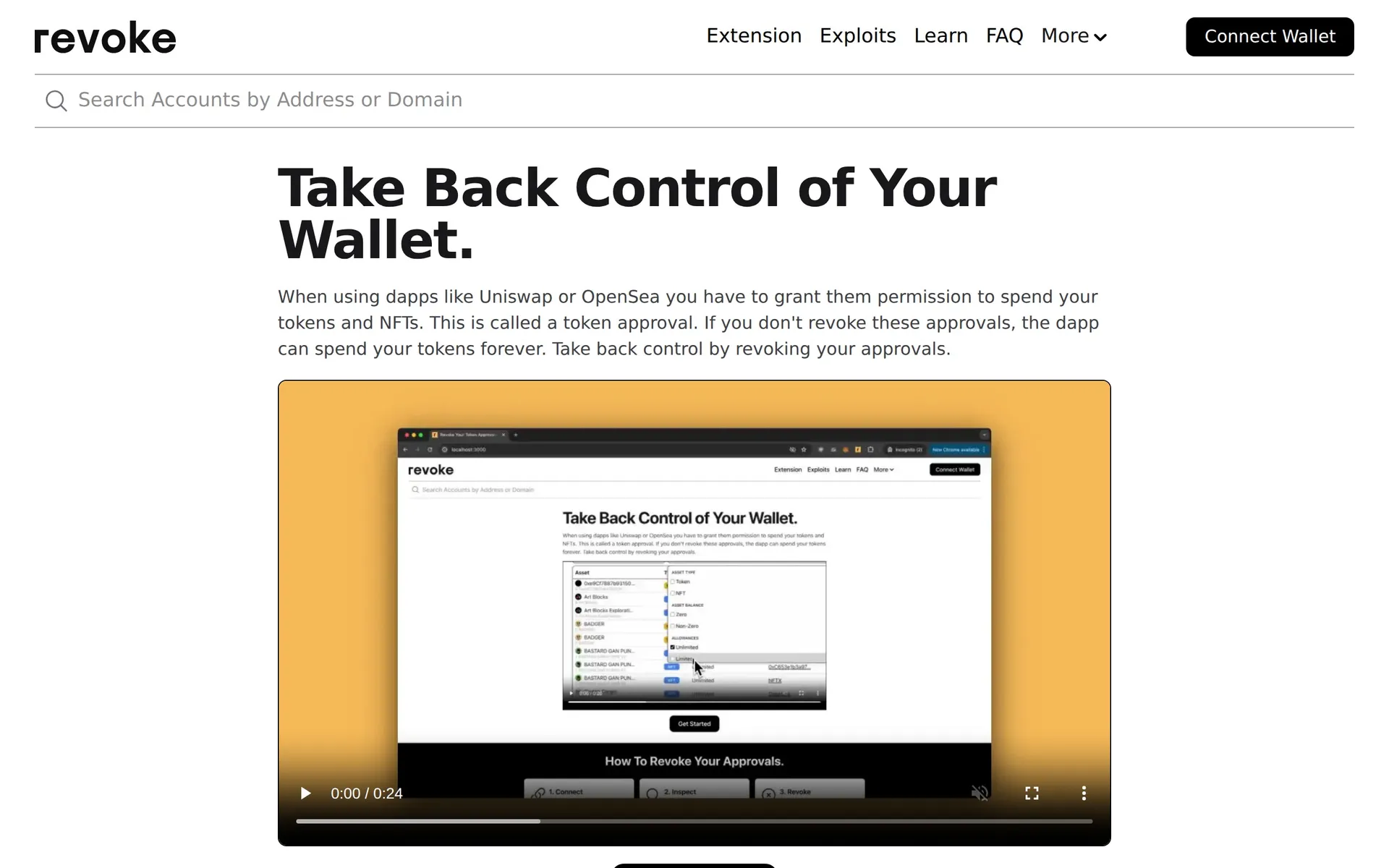
- Revoke unused approvals: Use Revoke.cash to check and remove token approvals
- Use a hardware wallet: Connect a Ledger or Trezor for large holdings
- Verify URLs: Bookmark official dApp sites and always check the URL before connecting
- Watch for phishing: MetaMask will never ask for your seed phrase via email or DM
- Keep MetaMask updated: Updates include important security patches
- Use separate wallets: Keep a "hot" wallet for daily use and a "cold" wallet for savings
Using MetaMask with DEXTools
For the best trading experience, use MetaMask together with DEXTools:
- Find tokens on DEXTools Pair Explorer
- Analyze the chart, liquidity, and holder distribution
- Click the swap button on DEXTools to trade directly
- Your MetaMask will pop up to confirm the transaction
This workflow gives you the research power of DEXTools combined with MetaMask's easy execution. Check our DEXTools beginner tutorial for more details.
Troubleshooting Common Issues
Transaction Stuck (Pending)
- Go to Settings - Advanced - Reset Account (this clears the nonce, not your funds)
- Or speed up the transaction by clicking "Speed Up" and paying higher gas
Token Not Showing
- Click Import Tokens at the bottom of the token list
- Paste the token contract address (find it on CoinGecko or the project website)
Wrong Network
- Switch to the correct network using the network selector
- Your tokens on each network are separate - ETH on Polygon is different from ETH on Ethereum
MetaMask Mobile vs Extension
FeatureBrowser ExtensionMobile AppdApp browserUses your regular browserBuilt-in browserHardware walletFull supportLimited supportToken swapsYesYesNetwork supportAll EVM chainsAll EVM chainsBiometric loginNoFace ID / FingerprintBest forDesktop tradingOn-the-go transactions
Frequently Asked Questions
Is MetaMask safe to use?
Yes, MetaMask is open-source, audited, and used by over 100 million people. However, security depends on how you protect your recovery phrase. Use strong passwords, never share your seed phrase, and consider a hardware wallet for large amounts.
Does MetaMask charge fees?
MetaMask itself is free. You pay blockchain gas fees for transactions (set by the network, not MetaMask). The built-in swap feature charges a 0.875% service fee.
Can I use MetaMask for Bitcoin?
MetaMask natively supports only EVM-compatible blockchains (Ethereum, Polygon, etc.). For Bitcoin, you would need wrapped BTC (WBTC) on an EVM chain, or use a different wallet like Electrum or Sparrow.
What happens if I lose my recovery phrase?
If you lose your recovery phrase and lose access to your wallet (e.g., computer breaks), your funds are permanently lost. There is no recovery option. Always back up your seed phrase securely.
Can I have multiple wallets in MetaMask?
Yes. Click your account icon and select "Create Account" to add additional wallets. Each account has its own address but shares the same recovery phrase. You can also import wallets from other sources using private keys.
Helpful next reads on DEXTools
Disclaimer: This article is for educational purposes only and does not constitute financial advice. Always do your own research (DYOR) before interacting with any cryptocurrency protocol. Never invest more than you can afford to lose.
