How to Use Ledger Hardware Wallet: Complete Security Tutorial (2026)
— By Tony Rabbit in Tutorials
Complete Ledger hardware wallet tutorial for 2026. Choose the right model, set up securely, manage crypto in Ledger Live, connect to DeFi, and protect your recovery phrase.
A Ledger hardware wallet is a physical device that stores your cryptocurrency private keys offline on a secure chip, providing bank-grade security. Unlike software wallets, it protects your crypto from online threats like malware and phishing by never directly connecting your keys to the internet, supporting over 5,500 tokens.
A hardware wallet is the gold standard for cryptocurrency security. While software wallets like MetaMask and Phantom are convenient for daily use, they store your private keys on an internet-connected device - making them vulnerable to malware, phishing, and hacking. A Ledger hardware wallet stores your keys on a certified secure chip that never connects directly to the internet, providing bank-grade security for your crypto holdings.
This tutorial covers everything about Ledger hardware wallets in 2026 - choosing between models, setting up your device, managing crypto through Ledger Live, connecting to DeFi through third-party wallets, securing your recovery phrase, and understanding when and why you need a hardware wallet.
Why You Need a Hardware Wallet
If you hold more than a few hundred dollars in crypto, a hardware wallet is not optional - it is essential. Here is why: software wallets (MetaMask, Phantom, Trust Wallet) keep your private keys in browser storage or on your phone. If your computer gets malware, if you click a phishing link, if your phone is compromised - your funds can be drained in seconds. With a hardware wallet, every transaction requires physical confirmation on the device. Even if your computer is fully compromised, an attacker cannot steal your crypto without having the physical device in their hands.
Choosing Your Ledger Model
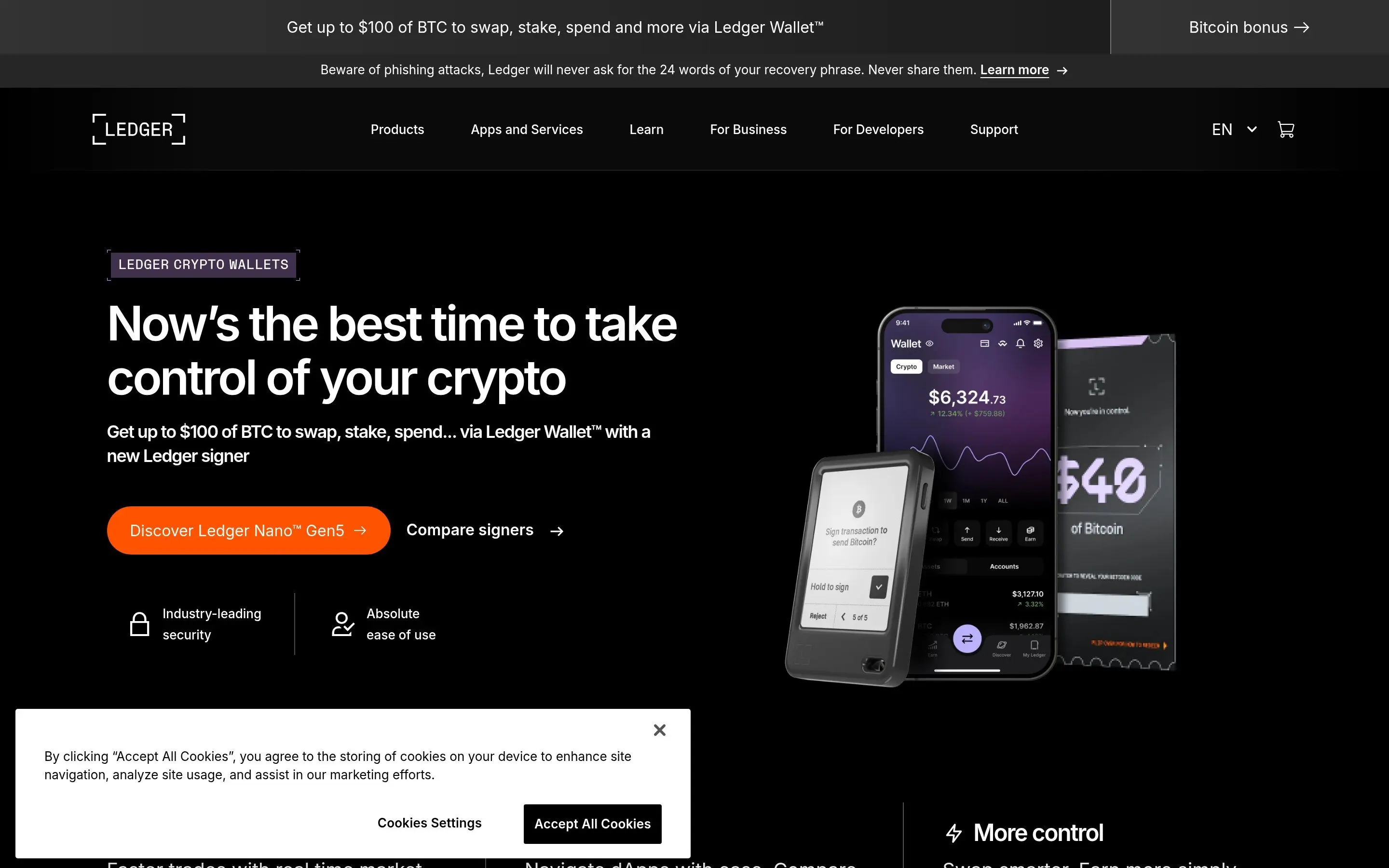
The Nano S Plus is the best value - same security chip as all models at the lowest price. The Nano X adds Bluetooth for mobile use. The Stax is the premium option with a large touchscreen for the best user experience.
Step 1 - Initial Setup
Unbox your Ledger and connect it via USB (or Bluetooth for Nano X/Stax). Download Ledger Live from ledger.com (desktop or mobile). The app walks you through setup: choose "Set up as new device," create a PIN code (4-8 digits), and the device generates your 24-word recovery phrase. Write every word on the provided recovery sheet. Verify each word when prompted.
Step 2 - Securing Your Recovery Phrase
The 24-word recovery phrase is the ONLY way to recover your crypto if the device is lost, damaged, or stolen. Store it on the paper card in a secure location (safe, safety deposit box). Consider a metal backup (Cryptosteel, Billfodl) for fire and water protection. NEVER store digitally. NEVER photograph it. NEVER type it into any website. Ledger will NEVER ask for your recovery phrase.
Step 3 - Installing Apps and Managing Crypto
In Ledger Live, go to "My Ledger" to install blockchain apps (Bitcoin, Ethereum, Solana, etc.). Each app enables that blockchain on your device. Then create accounts for each crypto you want to manage. You can receive, send, and view balances all through Ledger Live. The app also supports staking for ETH, SOL, DOT, ATOM, and others directly.
Step 4 - Connecting to DeFi
Ledger works with third-party wallets for DeFi access. Connect your Ledger to MetaMask (EVM chains), Solflare (Solana), or Rabby (multi-chain) to interact with DeFi protocols. The wallet interface provides convenience while the Ledger signs all transactions on the secure device. This is the recommended setup for serious DeFi users.
Step 5 - Ledger Live Features
Beyond basic send/receive, Ledger Live offers: built-in exchange (swap crypto within the app), staking for multiple assets, NFT management (view and send NFTs), portfolio tracking with price charts, and a discover section for accessing DeFi protocols through the app itself via Ledger Connect.
- ✔ Gold standard crypto security (CC EAL5+ chip)
- ✔ 5,500+ supported tokens across all major chains
- ✔ Works with MetaMask, Rabby, Solflare for DeFi
- ✔ Ledger Live app for portfolio management
- ✔ Physical confirmation prevents remote theft
- ✘ Not free (hardware cost $79-279)
- ✘ Less convenient than software wallets for quick trades
- ✘ Must carry device for transactions
- ✘ Ledger Recover controversy (optional cloud backup service)
- ✘ Small screen on Nano models can be difficult
Frequently Asked Questions
Related Guides
- Ledger vs Trezor 2026: Hardware Wallet Tested Showdown
- Ledger vs Trezor: Hardware Wallet Comparison 2026
- Keystone Wallet Review: Air-Gapped Hardware Wallet Explained
- Trezor Tutorial 2026: Setup & Use Your Hardware Wallet
- How to Set Up Trezor Hardware Wallet: Safe 3 and Safe 5 Tutorial (2026)
- How to Set Up a Ledger Nano (Step-by-Step)
- Malicious AI Routers and Crypto Wallet Security 2026
- Best Bitcoin Wallet 2026