Send Crypto from Binance to Phantom Wallet: 2026 Guide
— By Tony Rabbit in Tutorials

Send crypto from Binance to Phantom Wallet safely with this 2026 guide covering network matching, test withdrawals, fees, and common troubleshooting.
Sending crypto from Binance to Phantom Wallet is easy only when the destination route is clear before the withdrawal starts. Most mistakes do not happen after the transaction broadcasts. They happen earlier, when the user copies a receive address without checking the chain or treats the network selector on Binance like a minor detail.
This guide is built around the exact search intent users have in 2026: how to send crypto from Binance to Phantom Wallet. The safe version of this transfer is not just copy, paste, send. It is choosing the exact receive route inside Phantom first, then matching the asset, address, and network on Binance as one combined decision.
Quick answer
- Open Phantom first and select the exact asset you want to receive.
- Copy the receive address from Phantom directly and make sure the network on Binance matches that route.
- If the route is new or the amount matters, do a small test withdrawal before moving the full size.
Why Users Move Crypto from Binance to Phantom Wallet
Binance is useful for buying, selling, and managing balances inside exchange infrastructure. Phantom is useful when the user wants app-based self-custody, direct wallet control, and easier access to onchain activity. That makes this route a common exchange-to-wallet move, not just a balance transfer between apps.
If you need the broader platform walkthrough first, read How to Use Binance in 2026: Complete Beginner Guide. If you need the wallet setup first, read our Phantom Wallet guide.
Binance to Phantom rulebook
Step 1: Open the Exact Receive Route in Phantom First
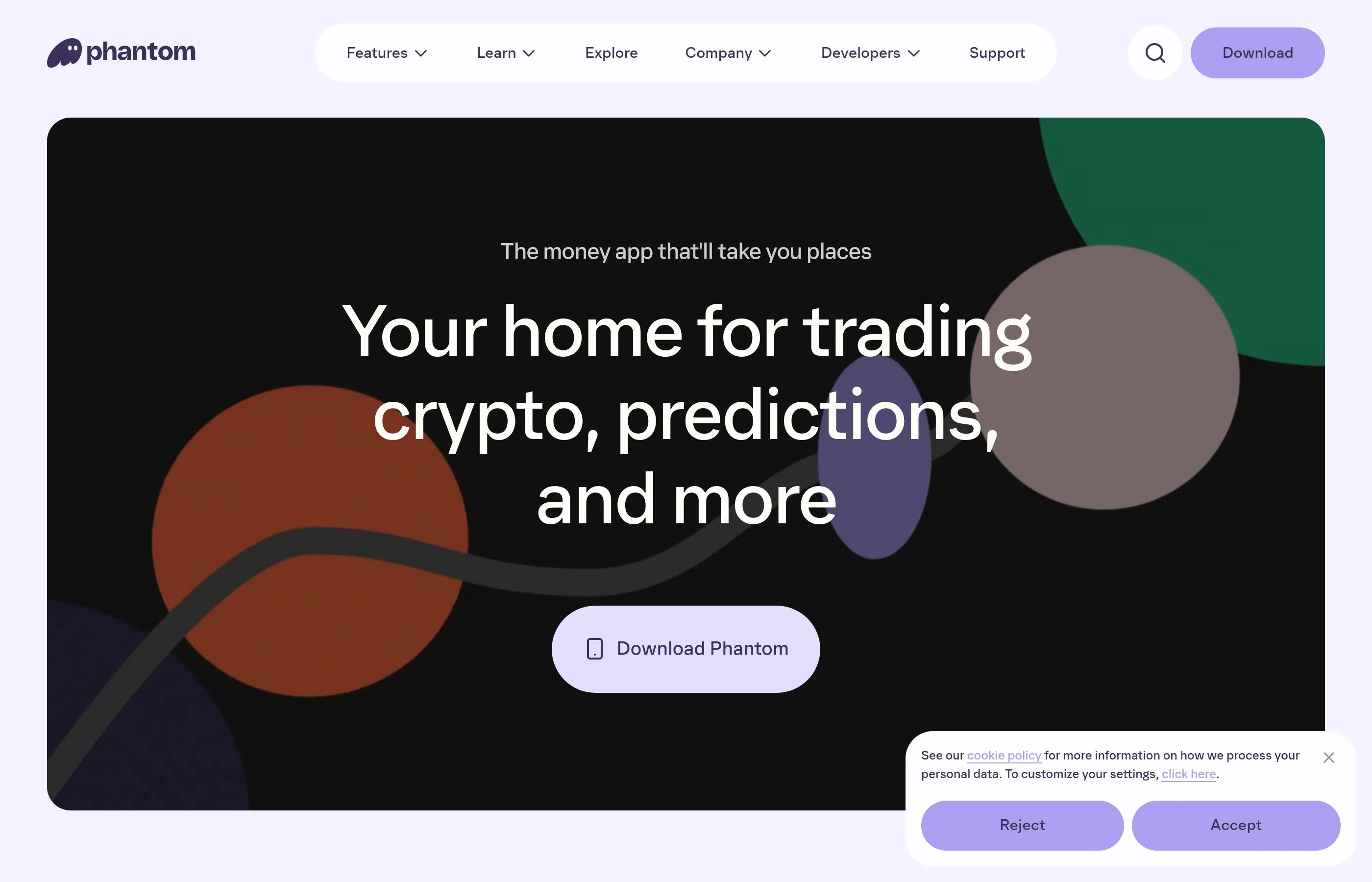
The safest order is wallet first, exchange second. Open Phantom, choose the exact asset you expect to receive, and only then tap receive to copy the destination. That matters because wallet convenience creates false confidence. If the route is not defined correctly inside the wallet, the withdrawal screen on Binance encourages rushed decisions.
Phantom supports more than one network, which is useful, but flexibility also creates room for user error. The destination setup should define the withdrawal path, not the exchange dropdown.
Step 2: Copy the Receive Address Carefully
After you open the correct asset in Phantom, copy the receive address directly from the wallet. Do not use an old clipboard entry, screenshot, or address that happened to work for a different transfer. In crypto, familiar looking information is exactly what causes lazy mistakes.
The key question is always the same: am I copying the address for the exact asset and network I intend to use? That answer should be clear before you even look at the withdrawal screen on Binance.
Step 3: Configure the Withdrawal on Binance
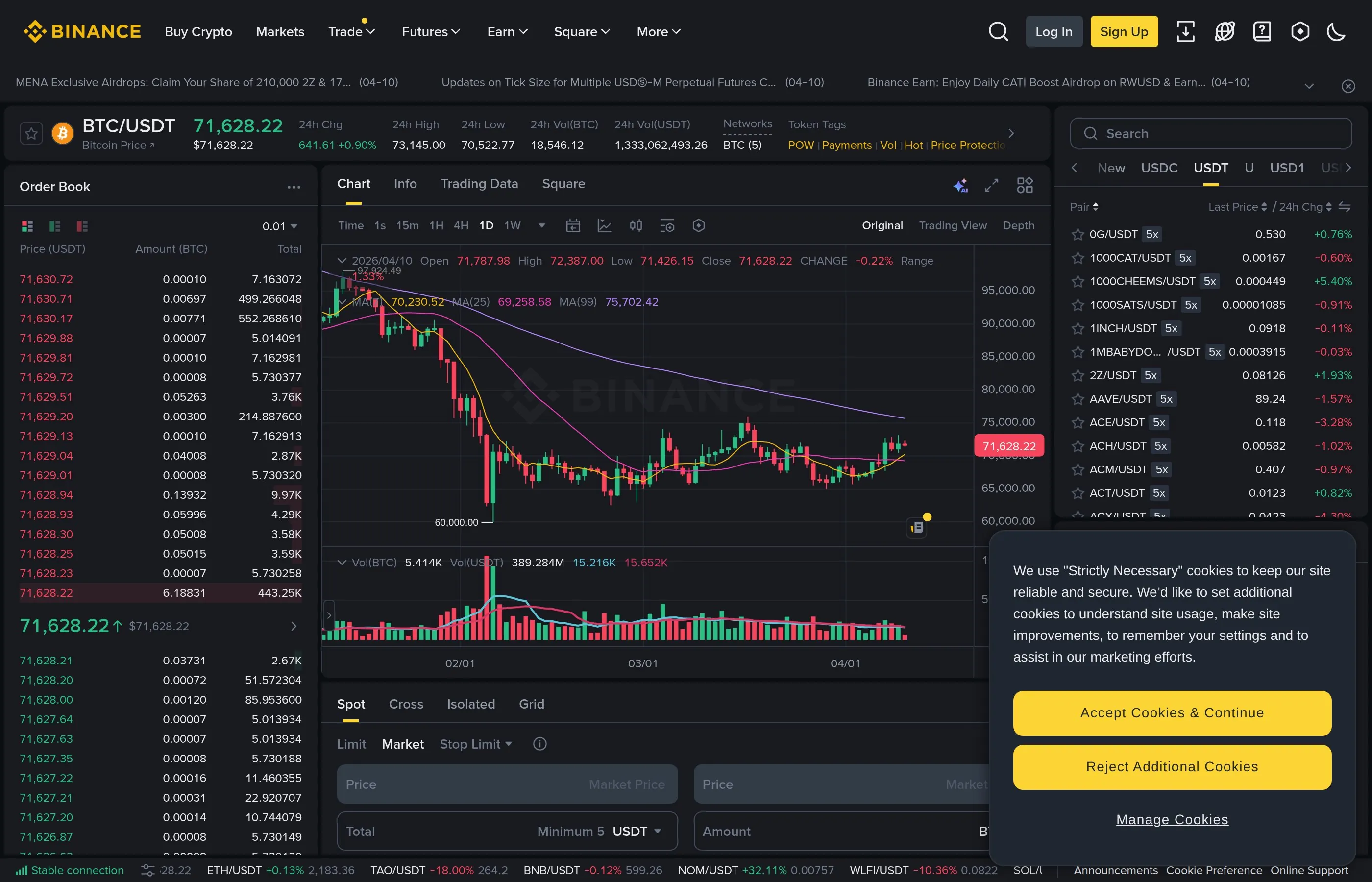
This is where most avoidable problems happen. On Binance, the address field feels important, but the real decision is the route itself. Asset, address, and network only make sense together. If you copy one piece correctly but choose the wrong network, the transfer can still become a mess for the user.
On Binance, pay extra attention to the withdrawal network selector, address whitelists, and any memo or tag warnings. The interface is fast, which is exactly why users click through the route review too quickly.
What to review before confirming on Binance
Step 4: Use a Test Withdrawal for Meaningful Amounts
A small test transfer is still the cleanest risk-management habit in self-custody. If the first small amount lands correctly in Phantom, you remove most of the uncertainty before the full balance moves. That matters even more when the asset exists across several networks or when the user does not move funds from Binance very often.
Binance to Phantom flow
Step 5: Verify the Funds in Phantom
After Binance marks the withdrawal as complete, confirm the balance inside Phantom before you relax. Start with simple checks: did you open the right asset, are you looking at the right network, and does the tx hash match the route you selected? Many missing-funds situations are really just visibility mistakes or chain confusion.
If the transaction confirms onchain and the route details were correct, the next step is usually to verify the asset view and network inside Phantom before assuming the funds are gone.
Fees, Timing, and Confirmation Expectations
Users searching this keyword do not only want to know whether the transfer works. They also want to know what it costs and how long it should take. The practical answer depends on the live withdrawal fee shown on Binance, the chain you choose, and whether extra security checks slow the request down.
The cheapest route is not always the correct route. If a lower fee pushes the user onto the wrong chain for the Phantom setup they actually intended, the cheap option becomes the expensive one. The real goal is not just low cost. It is a correct, low-friction route that lands where the user expects.
What users should expect before sending size
Common Binance to Phantom Mistakes to Avoid
Mistakes that hurt users over and over
What to Do If the Transfer Does Not Show Up
If Binance says the withdrawal is complete but you do not see the funds in Phantom yet, do not jump straight to panic. Confirm the withdrawal status and tx hash on Binance, then verify the exact asset and network inside the wallet. If needed, refresh the token view or confirm the chain before assuming anything was lost.
Most of the time, the answer is boring rather than dramatic: wrong asset selected in the wallet, wrong network assumption, or token visibility not surfaced yet. This is exactly why a test withdrawal is such a strong habit. It converts a scary unknown into a controlled verification.
Frequently Asked Questions
Can I send SOL or USDC from Binance to Phantom Wallet?
Yes, but you need to match the network exactly and make sure Phantom is ready to receive that specific asset route before you withdraw from Binance.
How long does it take to send crypto from Binance to Phantom Wallet?
It depends on the asset, chain congestion, and any withdrawal review on Binance. Some transfers are fast, but slower does not automatically mean failed.
What if the transfer does not show up in Phantom Wallet right away?
First confirm the withdrawal status and tx hash on Binance, then verify the exact asset and network inside Phantom before assuming the funds are missing.
Should I do a test withdrawal from Binance to Phantom Wallet first?
Yes. If the route is new, the amount is meaningful, or the asset exists on more than one network, a small test send is the safest move.
What fee should I expect when withdrawing from Binance to Phantom Wallet?
The cost depends on the asset and route shown on the live Binance withdrawal screen. Always confirm the exact fee before you send.
Related reading
Disclaimer: This article is for educational purposes only and does not constitute investment, tax, or legal advice. Exchange withdrawal options, chain support, and wallet behavior can change over time. Always confirm the live asset, network, and destination details before moving funds.