How to Use Phantom Wallet: Complete Tutorial (2026)
— By Tony Rabbit in Tutorials
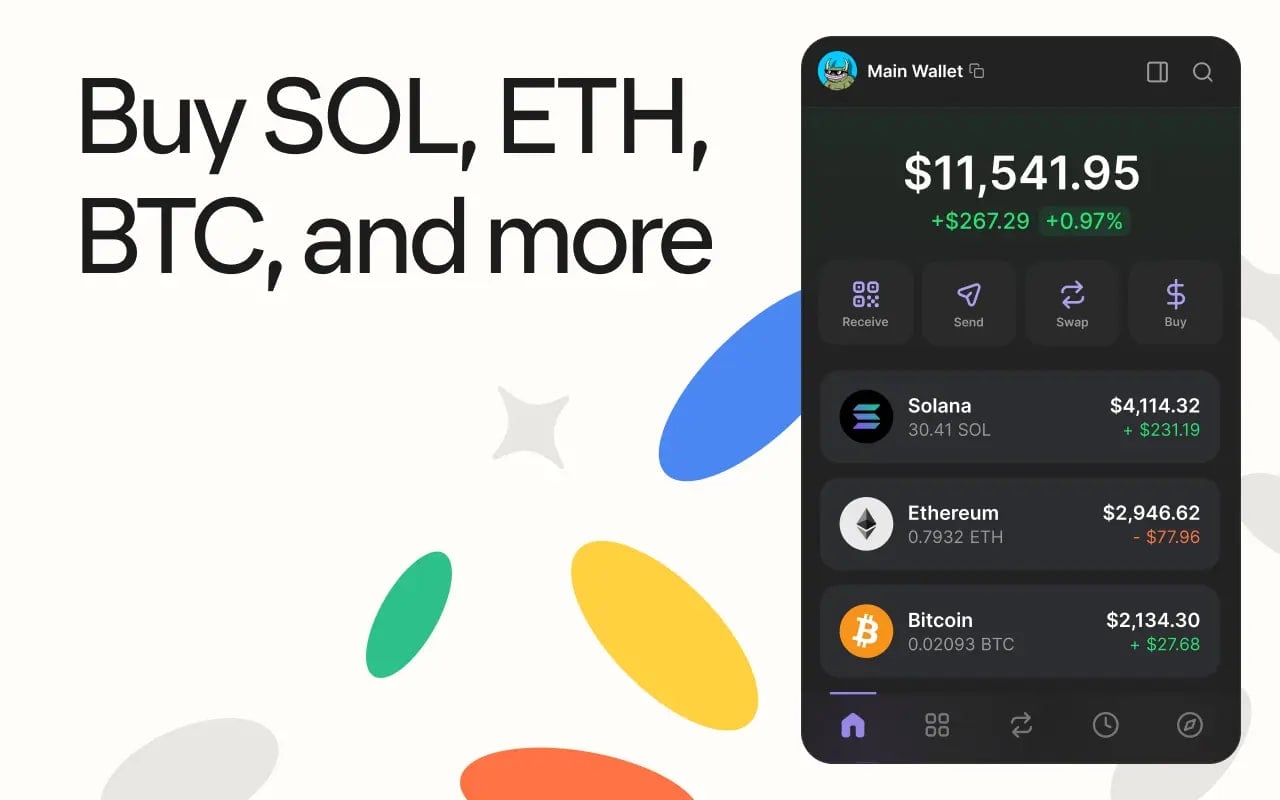
Learn how to use Phantom wallet from installation to advanced features. This complete tutorial covers creating your wallet, sending and receiving crypto, swapping tokens, staking SOL, connecting to DApps, managing NFTs, and security best practices.
Phantom is the most popular crypto wallet for Solana, with over 15 million users worldwide in 2026. It also supports Ethereum, Polygon, Base, and Bitcoin, making it a true multi-chain wallet. Whether you want to trade memecoins, collect NFTs, stake SOL, or interact with DeFi protocols, Phantom is the starting point.
This step-by-step tutorial walks you through everything: installing Phantom, creating your wallet, sending and receiving crypto, swapping tokens, connecting to DApps, viewing NFTs, staking SOL, and securing your wallet. Each step includes visuals so you never get lost.
What Is Phantom Wallet?
Phantom is a non-custodial crypto wallet, meaning you control your private keys - not a company. It works as a browser extension (Chrome, Firefox, Brave, Edge) and as a mobile app (iOS, Android). Originally built for Solana, Phantom now supports multiple blockchains:
- Solana: Full support including SPL tokens, NFTs, staking, and all Solana DApps
- Ethereum: ERC-20 tokens, NFTs, and Ethereum DApps
- Polygon: Low-cost transactions and DeFi protocols
- Base: Coinbase Layer 2 ecosystem
- Bitcoin: BTC storage and Ordinals support
Step 1: Download and Install Phantom
Browser Extension (Desktop)
- Go to phantom.app (always verify the URL - never download from third-party sites)
- Click "Download" and select your browser (Chrome, Firefox, Brave, or Edge)
- You will be redirected to your browser extension store
- Click "Add to Chrome" (or your browser equivalent)
- The Phantom ghost icon will appear in your browser toolbar
- Pin the extension by clicking the puzzle icon in Chrome and pinning Phantom
Mobile App
- Open the App Store (iOS) or Google Play Store (Android)
- Search for "Phantom - Crypto Wallet"
- Verify the developer is "Phantom Technologies Incorporated"
- Download and install the app
Warning: Never download Phantom from unofficial sources. Fake Phantom apps exist that steal your crypto. Always verify you are on phantom.app or the official app store listing.
Step 2: Create a New Wallet
- Open the Phantom extension or app
- Click "Create a new wallet"
- Set a strong password (this encrypts the wallet locally on your device)
- Use at least 12 characters with uppercase, lowercase, numbers, and symbols
- Click "Continue"
Phantom will now generate your secret recovery phrase (also called seed phrase). This is the most critical part of the setup process.
Step 3: Back Up Your Secret Recovery Phrase
Your recovery phrase is 12 words that give complete access to your wallet. Anyone with these words can steal all your crypto. Follow these rules:
- Write it down on paper: Never store it digitally (no screenshots, no notes app, no cloud storage, no email)
- Store it in a safe place: A fireproof safe, safety deposit box, or hidden location
- Make a second copy: Store it in a different physical location
- Never share it: No legitimate service will ever ask for your seed phrase. Not Phantom support, not customer service, not anyone
- Consider a metal backup: Paper can burn or get wet. Steel seed phrase plates survive disasters
Critical: If you lose your recovery phrase and lose access to your device, your crypto is gone forever. There is no "forgot password" for crypto wallets. This is the tradeoff for true ownership.
Step 4: Receive Crypto (Deposit)
To receive SOL or any Solana token:
- Open Phantom and click "Receive" on the main screen
- Select the network (Solana, Ethereum, etc.)
- Your wallet address appears as a long string of characters and a QR code
- Copy the address or show the QR code to the sender
- If depositing from an exchange (Coinbase, Binance, Kraken), paste your Phantom address in the withdrawal screen
Important: Always double-check the network. If someone sends you SOL but you give them your Ethereum address, the funds will be lost. Solana addresses start with a base58 string, Ethereum addresses start with 0x.
First Deposit Recommendation
Start with a small test transaction ($5-10 of SOL) before sending larger amounts. This confirms you have the correct address and network. SOL transactions cost fractions of a cent, so there is no reason not to test first.
Step 5: Send Crypto
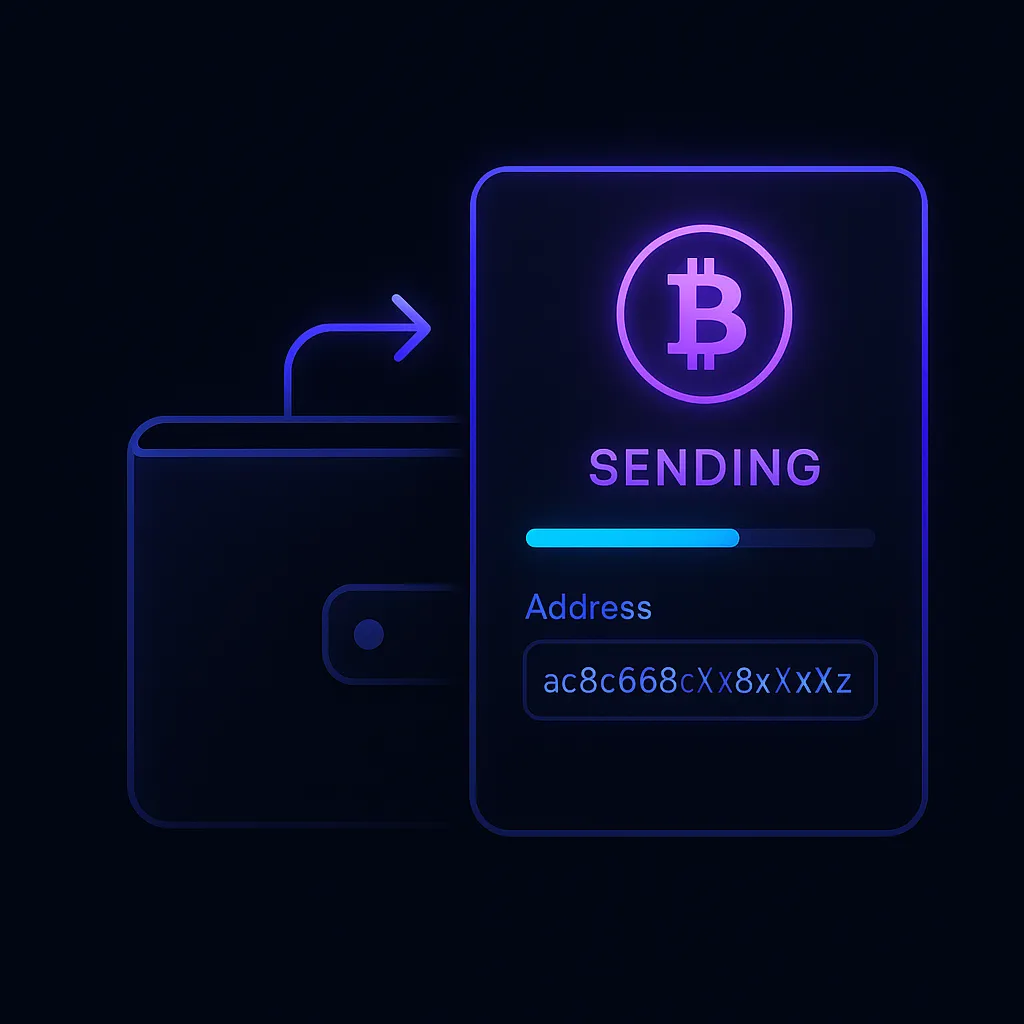
- Click "Send" on the Phantom main screen
- Select the token you want to send (SOL, USDC, or any SPL token)
- Enter the recipient wallet address (paste it - never type manually)
- Enter the amount to send
- Review the transaction details, including network fee
- Click "Send" and confirm
Solana transactions typically confirm in under 1 second. The fee is usually 0.000005 SOL (less than $0.01). You will see a confirmation with a transaction hash that you can look up on a Solana explorer.
Step 6: Swap Tokens Inside Phantom
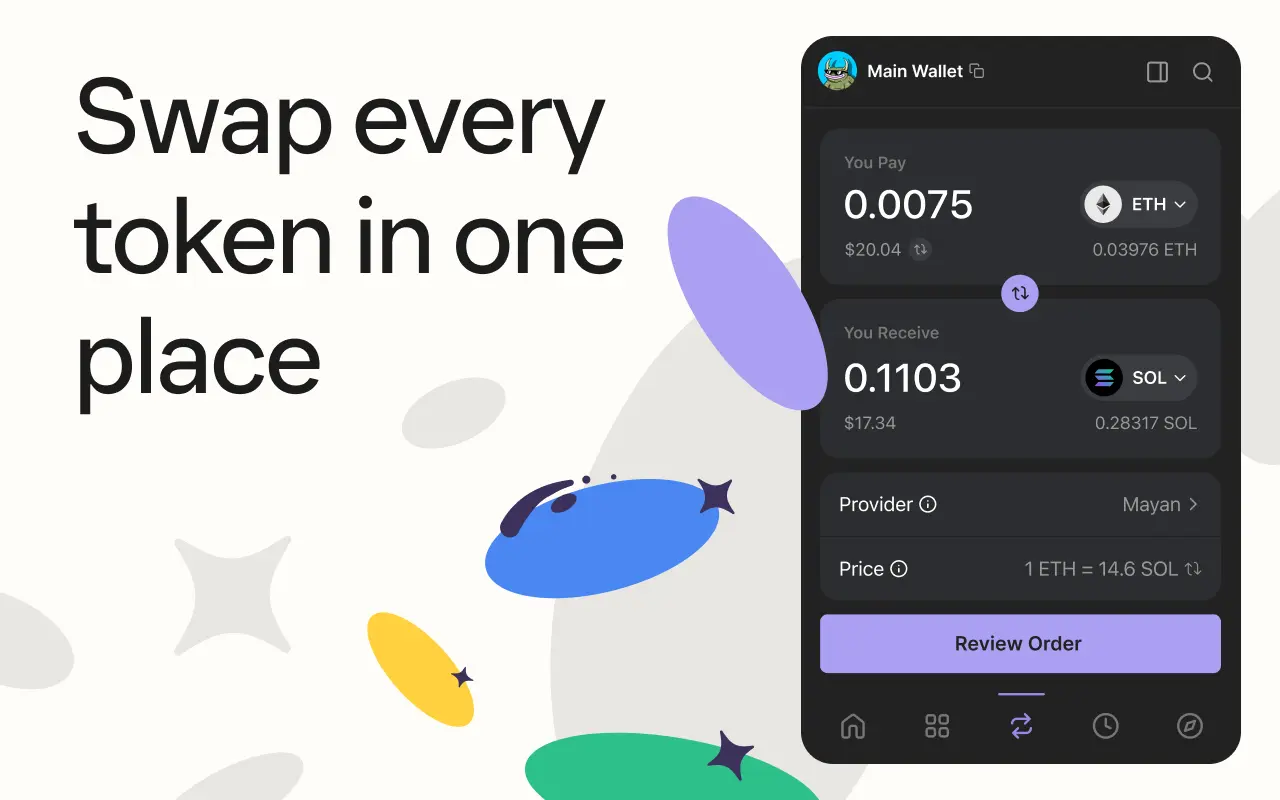
Phantom has a built-in swap feature powered by Jupiter aggregator, giving you the best rates across all Solana DEXes:
- Click the swap icon (two arrows) in Phantom
- Select the token you want to swap FROM (e.g., SOL)
- Select the token you want to swap TO (e.g., USDC, BONK, or any SPL token)
- Enter the amount
- Review the rate, price impact, and minimum received
- Click "Review Order" then "Swap"
Pro Tips for Swapping
- Slippage tolerance: For stable pairs (SOL/USDC), use 0.5%. For memecoins, you may need 1-5%
- Price impact: If it shows more than 2%, the liquidity is thin. Consider a smaller trade
- Always keep some SOL: You need SOL for transaction fees. Keep at least 0.05 SOL ($1-2) for gas
- To find good tokens to swap, use DEXTools to analyze pairs before trading
Step 7: Connect Phantom to DApps
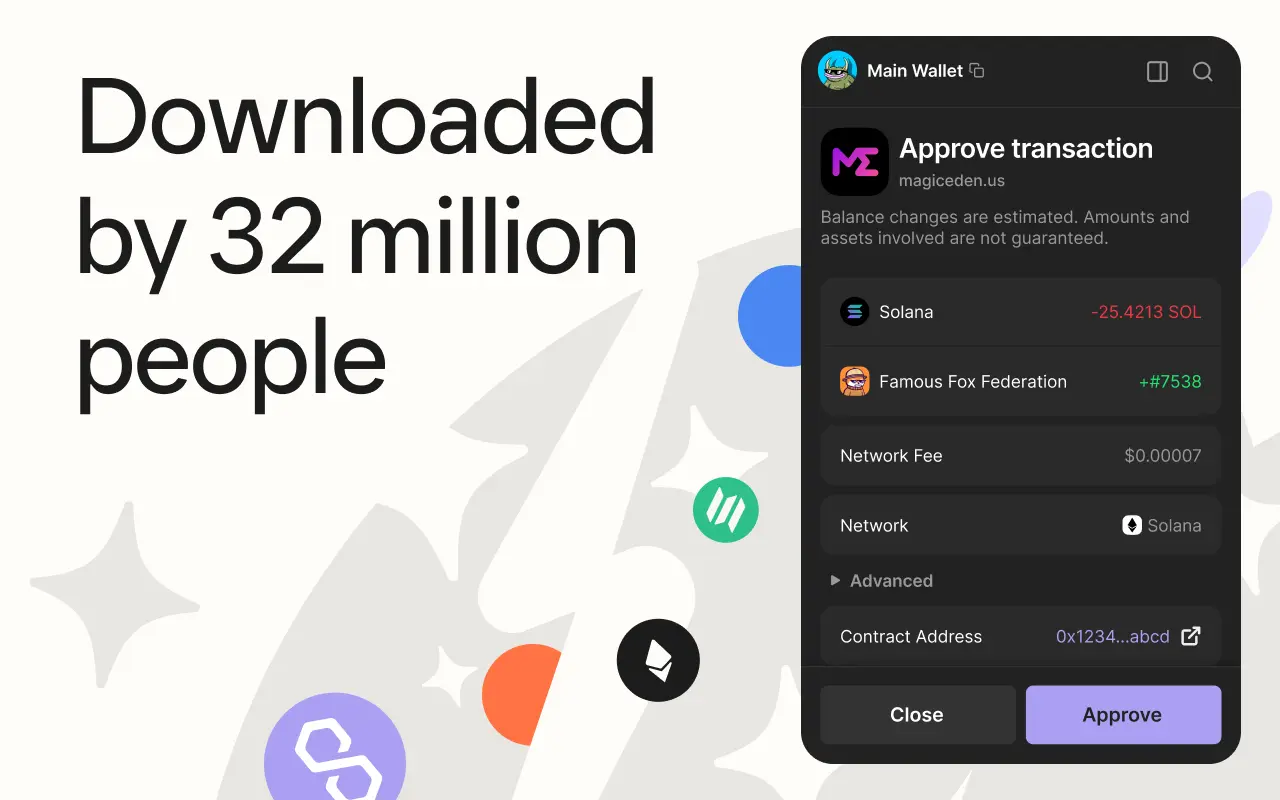
Phantom connects to hundreds of Solana DApps for DeFi, NFTs, gaming, and more:
- Visit any Solana DApp (Jupiter, Raydium, Magic Eden, Tensor, etc.)
- Click "Connect Wallet" on the DApp website
- Select "Phantom" from the wallet options
- A Phantom popup will appear asking you to approve the connection
- Review what permissions the DApp is requesting
- Click "Connect"
Security tip: Only connect to DApps you trust. Malicious DApps can request transaction approvals that drain your wallet. Always read what you are signing. If a "connect" request asks you to approve a transaction or sign a message, be cautious.
Managing Connected DApps
To disconnect a DApp: Settings > Trusted Apps > click the X next to any DApp you want to disconnect. Regularly review and remove DApps you no longer use.
Step 8: View and Manage NFTs

Phantom has one of the best NFT viewing experiences of any wallet:
- Click the "Collectibles" tab (grid icon) to see all your NFTs
- Tap any NFT to see details: name, collection, traits, and floor price
- Send NFTs: select the NFT, click "Send", enter the recipient address
- List for sale: Phantom integrates with Magic Eden and Tensor for listing directly from the wallet
- Burn spam NFTs: right-click unwanted NFTs and select "Burn Token" to clean your gallery (you get a tiny SOL refund)
Warning about airdropped NFTs: Scammers send fake NFTs with links that lead to malicious websites. Never click links in NFTs from unknown sources. When in doubt, burn them.
Step 9: Stake SOL for Passive Income
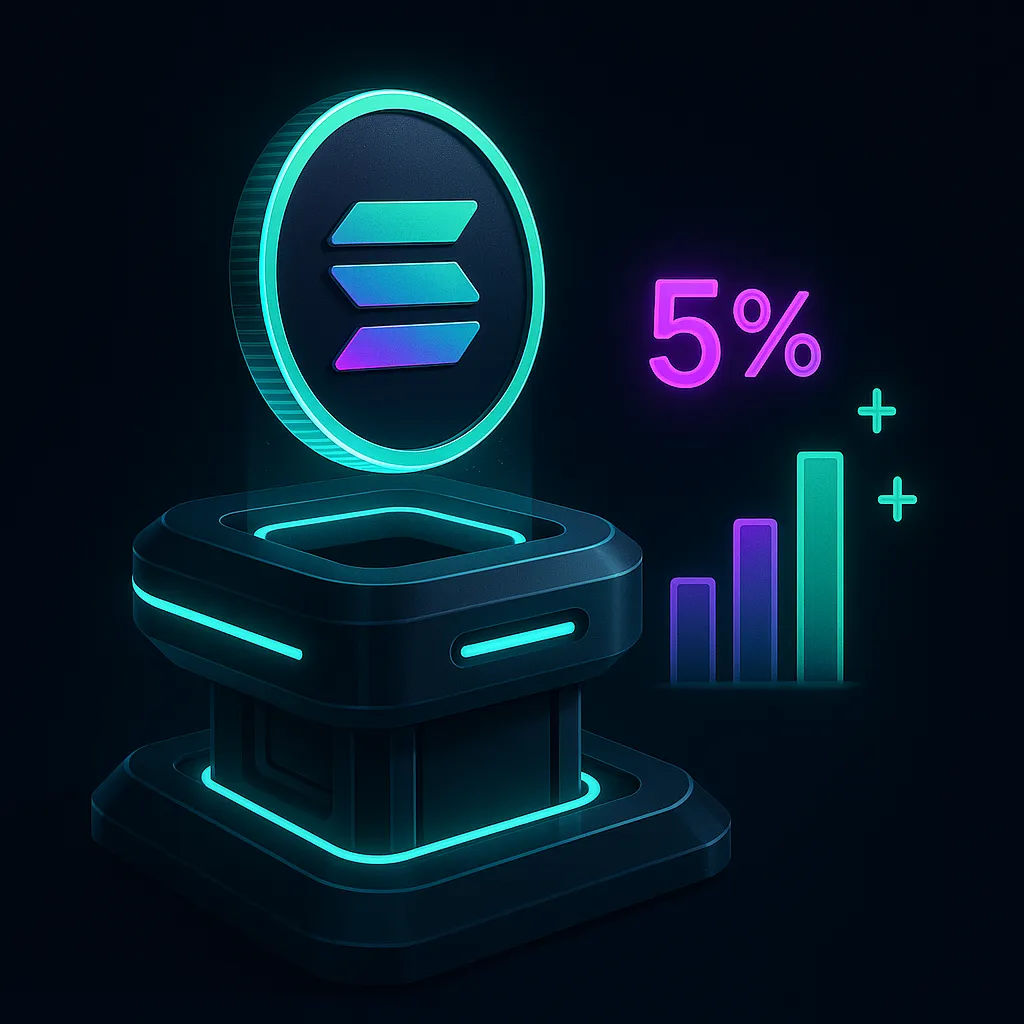
Staking SOL earns you approximately 6-8% APY while helping secure the Solana network:
- Open Phantom and click on your SOL balance
- Click "Start earning SOL"
- Choose a validator from the list (Phantom shows estimated APY and commission for each)
- Enter the amount to stake (keep some unstaked for transaction fees)
- Confirm the stake transaction
Staking Tips
- Choose validators wisely: Look for low commission (under 10%), high uptime (over 99%), and not in the top 10 by stake (to help decentralization)
- Unstaking takes 2-3 days: When you unstake, there is a cooldown period before you can use your SOL again
- Liquid staking alternative: Use Marinade (mSOL) or Jupiter (jupSOL) for liquid staking tokens that you can use in DeFi while still earning yield
- Rewards are automatic: Staking rewards accumulate every epoch (about 2 days) and compound automatically
Step 10: Security Best Practices
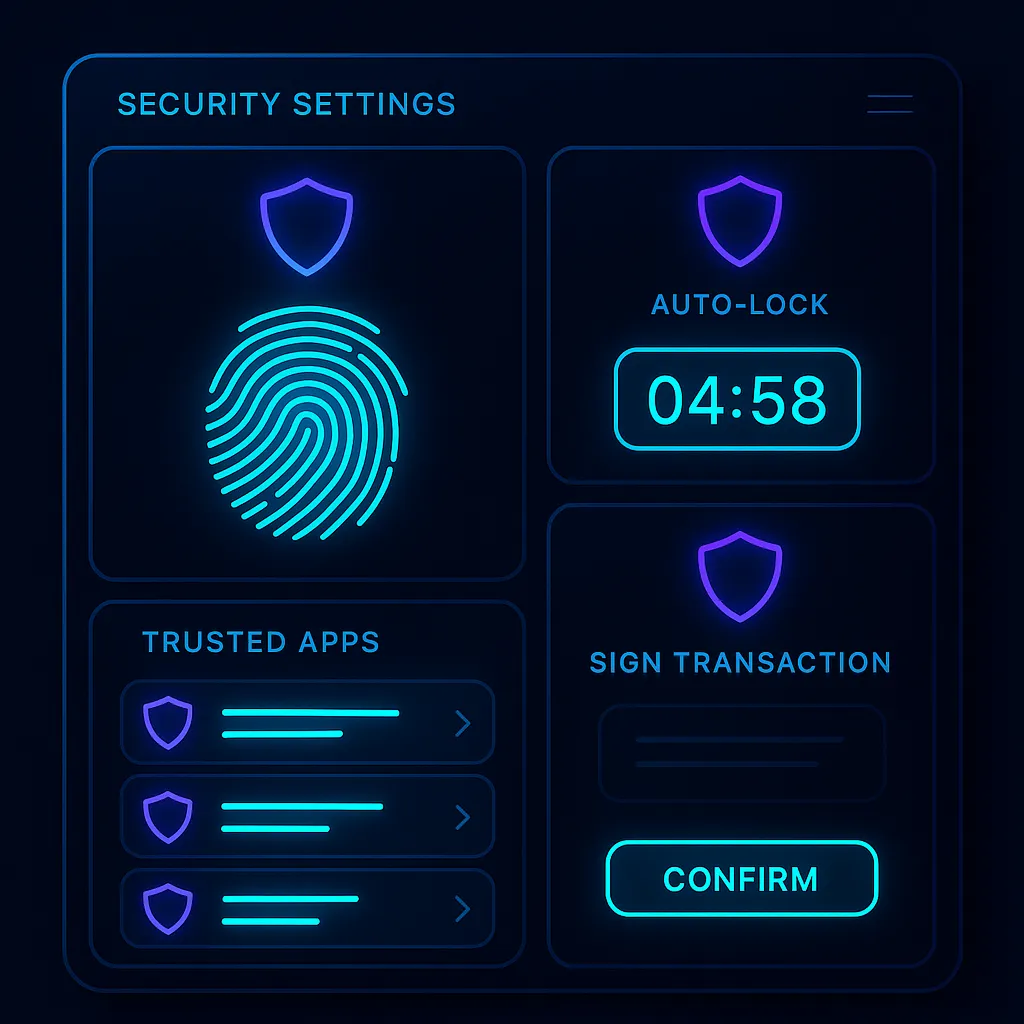
Your crypto is only as safe as your wallet security. Follow these practices:
- Enable biometric lock: Settings > Security > enable Face ID or fingerprint authentication
- Set auto-lock timer: Configure Phantom to lock after 1-5 minutes of inactivity
- Review trusted apps: Regularly check Settings > Trusted Apps and remove any you do not recognize
- Use a hardware wallet: For large amounts, connect a Ledger hardware wallet to Phantom for maximum security
- Enable transaction simulation: Phantom simulates transactions before you sign them, warning you about suspicious activity
- Beware of phishing: Always verify you are on phantom.app. Bookmark it. Never click wallet links from emails or DMs
Connecting a Ledger Hardware Wallet
- Connect your Ledger to your computer via USB
- Open the Solana app on Ledger
- In Phantom: Settings > Manage Accounts > Add/Connect Hardware Wallet
- Select "Ledger" and follow the prompts
- Your Ledger accounts will appear in Phantom, but private keys stay on the hardware device
Step 11: Multi-Chain Support
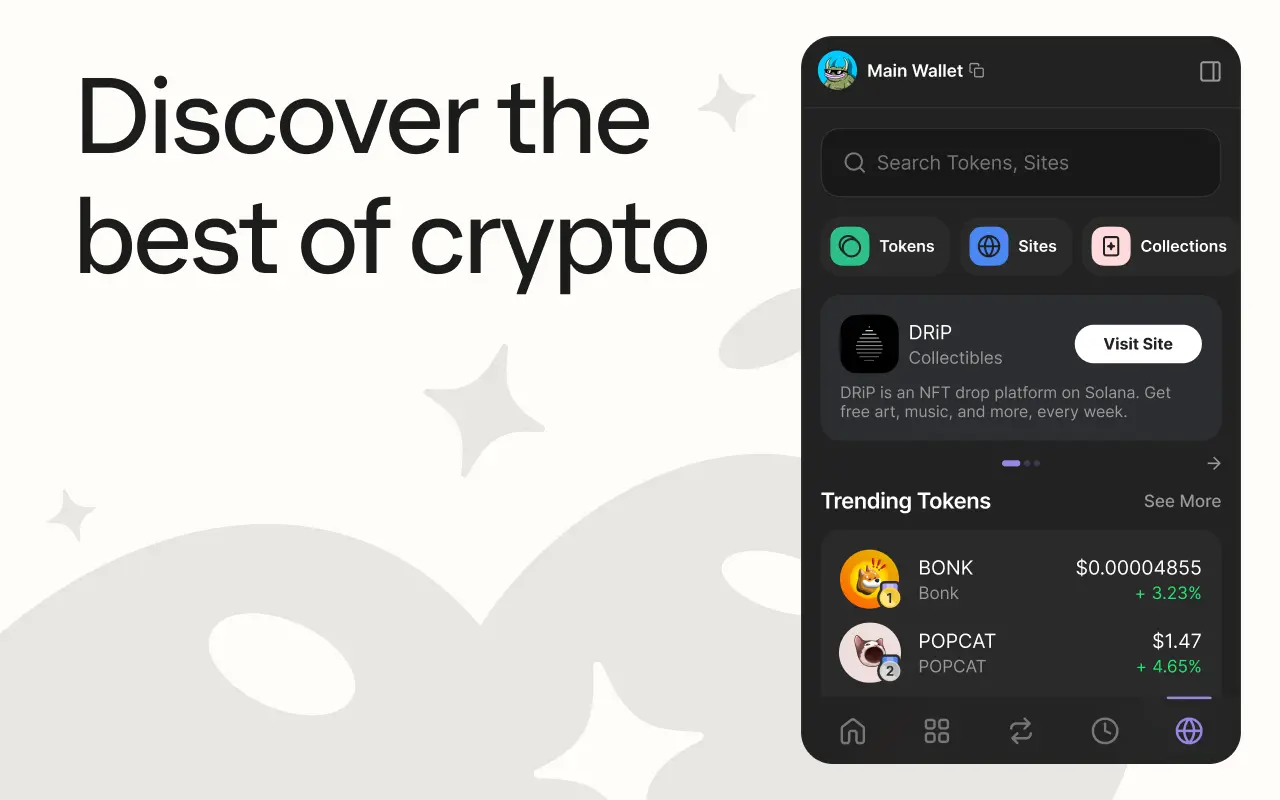
Phantom is no longer Solana-only. Here is how to use it across chains:
- Switch networks: Click the network icon at the top of Phantom to switch between Solana, Ethereum, Polygon, and Base
- Each network has a separate address: Your Solana address is different from your Ethereum address
- Cross-chain swaps: Phantom supports cross-chain swaps (e.g., SOL to ETH) directly in the app using bridging protocols
- Unified portfolio view: See all your assets across all chains in one dashboard
Phantom vs Other Wallets
| Feature | Phantom | MetaMask | Solflare |
|---|---|---|---|
| Primary Chain | Solana | Ethereum | Solana |
| Multi-chain | Yes (5 chains) | EVM only | Solana only |
| Built-in Swap | Yes (Jupiter) | Yes | Yes |
| NFT Gallery | Excellent | Basic | Good |
| Staking | Yes, native | No native | Yes, native |
| Hardware Wallet | Ledger | Ledger, Trezor | Ledger |
| Mobile App | iOS, Android | iOS, Android | iOS, Android |
| Transaction Simulation | Yes | Limited | No |
Common Issues and How to Fix Them
Transaction Failed
If a transaction fails, check: Do you have enough SOL for the fee? Is the network congested? Try increasing the priority fee in Settings > Transaction Settings.
Token Not Showing
If you received a token but it does not appear, click "Manage Token List" and search for the token contract address. Some new tokens need to be added manually.
DApp Not Connecting
Try: refresh the page, disconnect and reconnect, clear browser cache, or check if the DApp supports Phantom. Some DApps are MetaMask-only.
Phantom Shows Wrong Balance
Click the refresh icon. If still wrong, check the transaction on a Solana explorer (solscan.io) using your wallet address.
Frequently Asked Questions
Is Phantom wallet safe?
Yes, Phantom is one of the most trusted crypto wallets with over 15 million users. It has been audited by multiple security firms. However, no wallet is 100% safe if you do not follow security practices. Never share your seed phrase and be careful what transactions you approve.
Is Phantom wallet free?
Yes, Phantom is completely free to download and use. The wallet itself charges no fees. You only pay standard blockchain network fees for transactions (fractions of a cent on Solana).
Can I use Phantom for memecoins?
Absolutely. Phantom with its Jupiter-powered swap is one of the best wallets for trading Solana memecoins. Use DEXTools to find new tokens early and check their safety with the rug pull detection checklist before buying.
Can I recover my wallet if I lose my phone?
Yes, if you have your secret recovery phrase. Install Phantom on a new device, select "I already have a wallet", and enter your 12-word phrase. Your entire wallet, including all tokens and NFTs, will be restored.
Does Phantom support Bitcoin?
Yes, Phantom added Bitcoin support including BTC storage and Bitcoin Ordinals (NFTs on Bitcoin). Switch to the Bitcoin network within the app.
How do I track my Phantom wallet transactions?
Copy your wallet address and paste it into a Solana explorer like solscan.io or solana.fm. For portfolio tracking across chains, connect Phantom to DeBank or Zapper.